
Spotlight



During my time as a primary school teacher in Auckland, I noticed both teachers and parents struggling with Spotlight, an online reporting system. Teachers found it time-consuming while parents found it confusing. I worked with leadership, colleagues, and families to prototype walkthroughs and supports that gave clarity to live reporting and made the platform more user-friendly.

Audience
Parents and staff engaging with Spotlight at an Auckland primary school

Learning Designer – Proof of Concept (Video Walkthroughs)
My Role

Miro (action mapping)
Canva (visual design)
Google Docs, Forms and Sites (collaboration)
Camtasia (video editing)
Tools Used

-
Our school used Spotlight, a digital system where teachers upload student learning evidence and parents access progress online. When we shifted to “live reporting” (ongoing updates instead of full written reports), many parents didn’t know how to log in, found the layout confusing, or weren’t sure what to do with the information. Teachers also found the system clunky, inconsistent across classes, and very time-consuming to update. As a result, engagement from both staff and families was low.
-
I action mapped what parents and staff actually needed from Spotlight, gathered formal feedback to supplement my anecdotal information, and created three short prototype videos. These walkthroughs showed how to access the system, how to interpret the information, and a case study that used storytelling to show how parents could apply Spotlight information at home alongside a take-away help guide (job aid).
My Process
Before creating any solutions, I carried out a quick needs analysis to understand how Spotlight was actually being used. I began with informal conversations with parents during conferences and with colleagues (teachers and senior leadership) in staff discussions. These pointed to common issues: many parents weren’t logging in, and those who did often weren’t confident interpreting what they saw. Teachers reported uncertainty about how consistently to update the learner pathway, and whether their efforts were even reaching families.
To explore further, I sent out a short parent survey. The responses confirmed my hunch: nearly half of parents (47%) hadn’t downloaded the app, and most (79%) didn’t find the information easy to understand. Many described the layout and colour coding as confusing, and several asked directly: ‘What can we do to help our child at home?’
This analysis showed the problem was multi-layered:
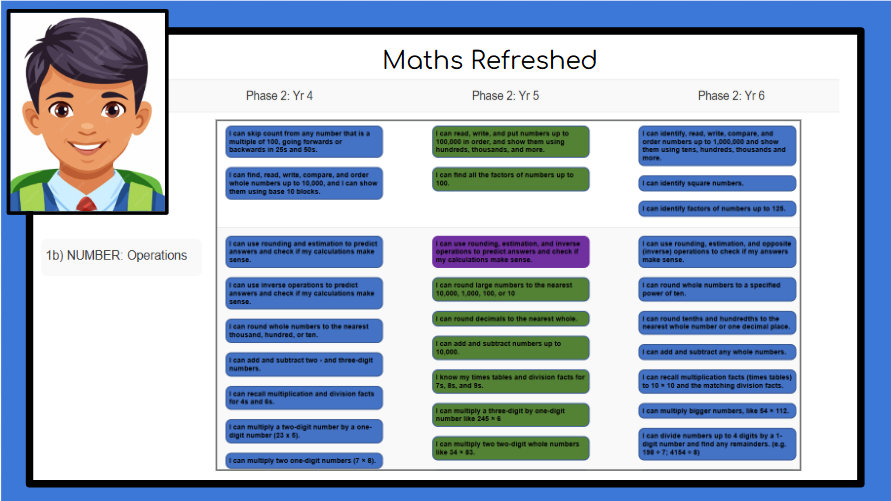
For parents, the main barriers were accessibility and understanding. Logging in was an challenge for many, the colour coding was inconsistent (e.g. purple used for more than one meaning), and it wasn’t clear what was current versus what hadn’t yet been achieved.
For teachers, the challenge was the accessibility of the tool itself. The user experience was clunky and time consuming, the colour legend was unnecessarily complex, and checking off objectives often felt repetitive or inefficient. Motivation was also an issue as teachers questioned the impact of putting time into updates when parent engagement was apparently limited.
Because both groups faced different but connected issues, it became clear that parent and teacher actions needed to be addressed together, rather than in isolation. I created an action map to break down what each group needed to do in Spotlight. This helped identify possible solutions and highlighted that parents needed clear, simple supports to access, interpret, and use Spotlight information in meaningful ways.
Analysis

Needs Analysis
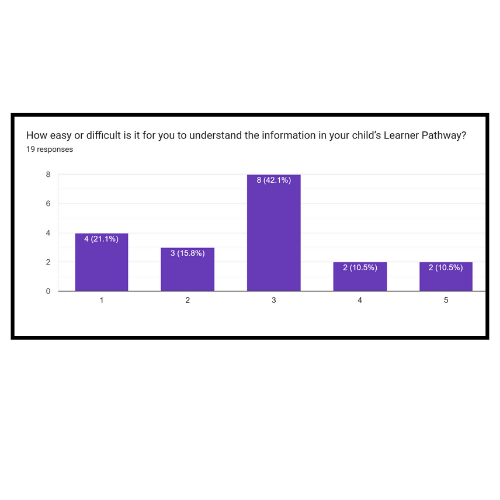
Sample statistic extracted from the survey sent to parents.

Action Map

Action map clarifying parent and teacher tasks in Spotlight.
Design
The action map showed that the first priority for parents was simply knowing how to access Spotlight, since almost half hadn’t downloaded the app. A help sheet already existed to cover this, so the next step was to design a tool that helped parents make sense of what they saw once logged in.
I considered the possibility of running an information session, but realised this would only reach a small group. Instead, I decided that prototype walkthrough videos would be the most practical option. They would be easier to share widely and revisit as needed. These would link parents’ immediate how questions to the deeper what and why, using storytelling examples to help them join the dots between school reporting and support at home.
The aim was to keep things simple, practical, and immediately relevant so parents could see what to do, not just be told. For teachers, these resources gave their updates more purpose, since families would now have the confidence to engage with the information being shared.
Develop
With the design mapped out, I wrote scripts in Google Docs, built a mock student profile for demonstration, and used Camtasia to prototype two short walkthrough videos:
How to access the app and read and interpret the data.
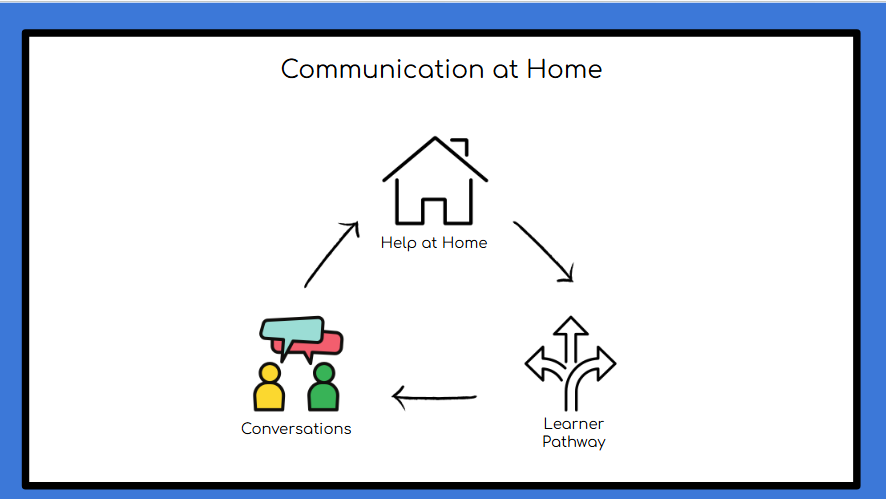
A storytelling scenario showing how parents could unpack and use the data at home to support their children - alongside the existing help sheet (job aid).
These prototypes were designed as concept pieces (not polished final products) to test how video walkthroughs might make Spotlight clearer and more meaningful for families.
Challenges
Camtasia had been recommended to me during a network meeting, but I’d never used it before. I was familiar with Screencastify for basic screen recording, so I drew on that knowledge and spent a little time watching tutorials before taking a ‘just dive in’ approach. I found Camtasia’s layout familiar (it reminded me of iMovie), and it made it surprisingly simple to produce something professional-looking quite quickly.
The biggest challenge was managing sensitive information. I had used a real student profile to create the walkthrough, so I needed to learn how to use the blur tool effectively. This took some trial, error, and extra research, but in the end I was able to mask personal details without compromising the clarity of the tutorial. The process gave me confidence with a new tool and showed how quickly I could create usable prototypes without needing weeks of training.
Story Telling Case Study



Implementation
The help sheet (job aid) was implemented and given to parents at the second round of parent–teacher conferences. Feedback was positive, with several families saying it gave them more clarity and practical ideas for supporting learning at home.
The prototype videos weren’t rolled out school-wide. I shared them with senior leadership as a proof of concept to show how Spotlight could be made more user-friendly. I also included the action map to highlight actions and challenges leadership may not have fully considered. These resources are due to be discussed further at an upcoming leadership meeting.
Evaluation
Because the prototypes haven’t been rolled out school-wide yet, formal evaluation is still to come. The parent help sheet (job aid), however, was used during conferences and feedback was positive: families said it gave them more clarity and practical ways to support learning at home.
When I shared the action map and video prototypes with leadership, the principal described the work as “outstanding.” Leadership recognised the potential of these tools to make Spotlight easier for both parents and staff. The resources are due for further discussion at an upcoming leadership meeting.
Even without full implementation, this stage confirmed my initial assumptions: parents needed clearer guidance, and teachers needed a stronger sense that their updates were valued. It also highlighted how valuable quick prototypes can be in sparking conversations about change.
Final Deliverable
Spotlight: How To
(access and navigate the app)
Spotlight: Insights
(how to interpret the learner profile at home)
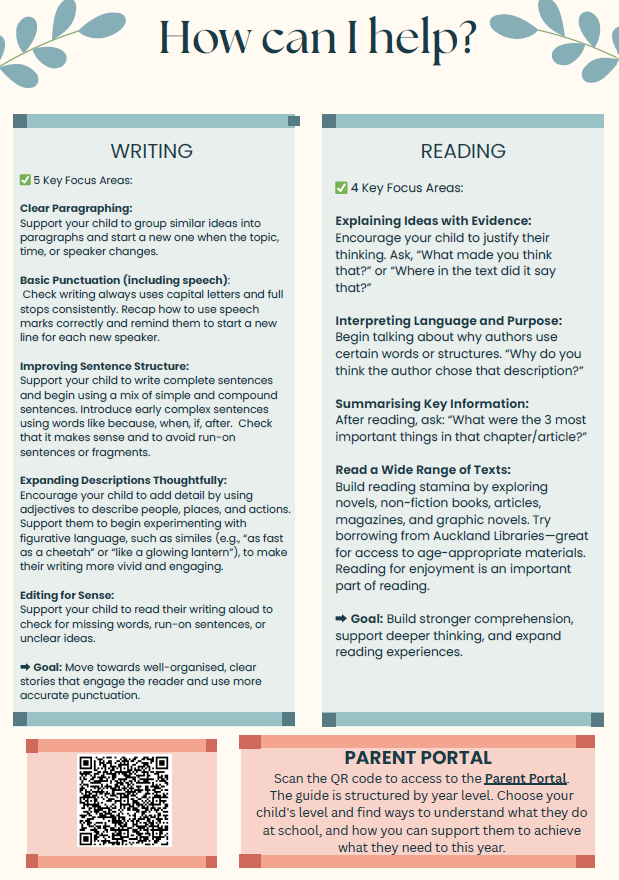

Help Sheet (Job Aid)
Help Sheet (Job Aid)
Mandarin Translated Version
Results and Takeaways
Measurable outcomes: Survey showed 47% of parents hadn’t downloaded the app, and 79% struggled to interpret the information, confirming the need for clear, accessible supports. Parents who used the help sheet at conferences said it gave them practical ways to help at home.
Recognition: Leadership described the prototypes as ‘outstanding,’ recognising their potential to make Spotlight easier for both parents and staff.
Lessons learned: Quick prototypes can spark meaningful conversations and demonstrate solutions, even without full implementation. Balancing parent and teacher needs together (not in isolation) was key.
Next steps: Leadership will review the prototypes and action map in an upcoming meeting. If scaled, the videos could be refined with polished voice-over, captions, and wider testing with families.